The short version
A practical guide to translating PDFs while keeping the original layout: Google Translate, DeepL, Adobe Acrobat AI, chatbots, and OCR workflows compared, with verified file limits, costs, and step-by-step procedures for native and scanned documents.
Summarize with AI
Editorial Disclosure & Affiliate Notice
This content is published for informational and educational purposes only. It is not intended as a substitute for professional, legal, financial, or medical advice. AIUnpacker is funded through clearly labeled sponsored articles and reviews, relevant paid link placements, and affiliate commissions where disclosed. Commercial partnerships help fund the free editorial library. Sponsored work is labeled, and a payment does not change the verdict.
- For educational purposes only. Nothing here should be taken as a guarantee, recommendation, or professional recommendation.
- AI-assisted editing. Drafts are produced with AI assistance and get a human pass before they go up.
- Opinions are our own. Also, we are not affiliated with most tools we cover unless explicitly stated.
- Information may be outdated. Verify pricing, features, and policies directly with the vendor.
- Last reviewed: . Published .
Read more on our About page, Terms and Editorial Policy.
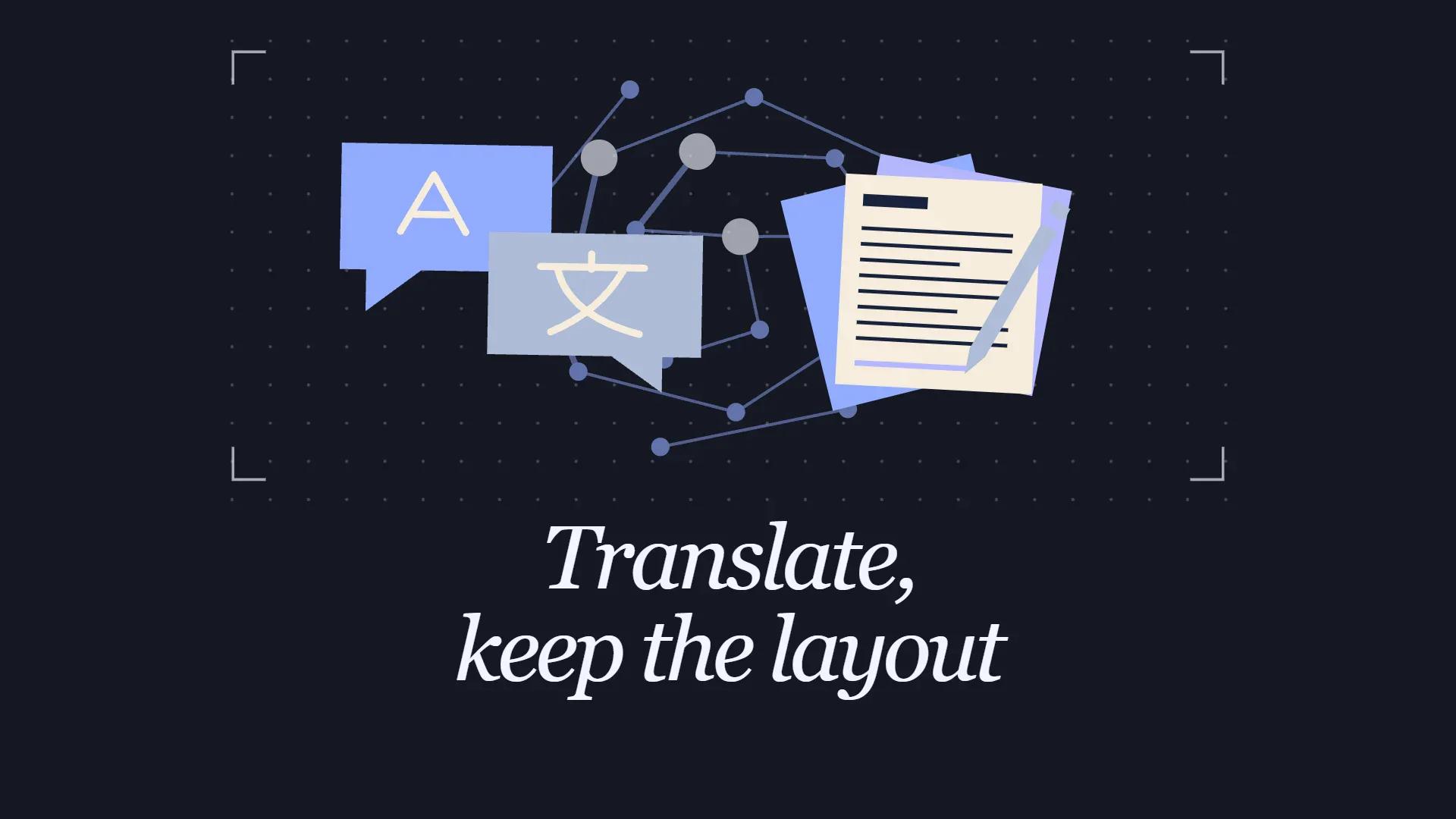
The fastest way to translate a PDF without losing formatting is to run the file through a document translator that rebuilds the original file: Google Translate’s Documents tab (free, up to 10 MB and 300 pages), DeepL (best translation quality, 5 MB free and up to 100 MB on Business plans), or Adobe Acrobat’s AI Assistant, which applies the translation inside the PDF itself so fonts, images, and layout stay put. Scanned PDFs need OCR first, because no tool can translate text it can’t read. And for legal or immigration paperwork, machine output isn’t acceptable: you need a certified human translation.
Why translating a PDF breaks the layout in the first place
Every “keep the formatting” problem traces back to one root cause: a PDF locks every character into a fixed position on the page, and a translation almost never takes up exactly as much space as the original. A Word document reflows when text changes; a PDF doesn’t. So when the translated sentence runs longer, something gives: text overflows its box, crashes into the next column, or gets squeezed to fit.
Translators have a name for this: text expansion is when a translation runs longer than its source text. It’s predictable, not random. Industry guides such as Argo Translation’s expansion breakdown put English-to-German growth at 35% or more, with Spanish and French typically adding 20-25%.
The number that breaks layouts: English-to-German translations commonly run 10-35% longer than the source text. If your design has no slack, that extra text has nowhere to go.
Scanned pages are the second failure mode. A scanned PDF is really a photograph of text, and Google’s own support page is blunt about it: text found in images and scanned PDF pages appears in the output but isn’t translated. The third failure mode is structure: tables and multi-column pages get read in the wrong order by text-extraction engines, so paragraphs interleave. Each problem has a different fix, which is what the rest of this guide walks through.
Which PDF translation tools preserve layout best?
For most people it comes down to three: Google Translate for speed, DeepL for quality, and Acrobat for documents where the original design is untouchable. Here’s the full field, with limits from each vendor’s official pages in November 2026.
| Tool | How it handles layout | Verified limits (Nov 2026) | Cost |
|---|---|---|---|
| Google Translate (Documents tab) | Rebuilds the translated PDF; skips text inside images | 10 MB, PDFs up to 300 pages;.docx,.pdf,.pptx,.xlsx | Free |
| DeepL | Strong on text-based PDFs; free-tier output isn’t editable | Free: 5 MB / 100,000 chars, 1 file/mo · Pro: 30 MB (Individual/Team), 100 MB (Business) | Free tier; Pro from €7.49/mo |
| Adobe Acrobat AI Assistant | Translates inside the PDF; fonts, images, and layout stay | 100 MB / 600 pages per Adobe’s product page | Paid Acrobat plans or $4.99/mo add-on |
| Canva PDF Translator | Rebuilds pages as editable designs; translated copy lands on a duplicate page | 134 languages; 1 free translation | Canva Pro for unlimited use |
| Smallpdf Translate PDF | Keeps formatting “as much as possible”; images and special layouts don’t carry over; OCR automatic | 20+ languages | Free with limits; subscription for unlimited |
| OnlineDocTranslator | Rebuilds layout using Google Translate’s engine | 109 languages; PDF, Word, Excel, PowerPoint, more | Free, no registration |
| ChatGPT / Claude | Translate text only: no formatted file comes out | ChatGPT: 512 MB / 2M tokens per file · Claude: up to 1,000 pages (visual analysis ≤100) | Free tiers; paid plans for heavy use |
One note on that table: the “how it handles layout” column is generous by vendor standards. Every rebuild-style tool reflows text somewhere. The differences show up in where they reflow, and how much cleanup you’re doing afterward.
How to translate a PDF with Google Translate (free, two minutes)
This is the right first try for any straightforward, text-based PDF, and it costs nothing.
- Go to translate.google.com on a desktop browser. Google says document translation isn’t available on smaller screens or mobile.
- Click the Documents tab at the top.
- Set the source language (or leave it on Detect language) and pick the target language.
- Click Browse your computer, select your PDF (up to 10 MB and 300 pages) and click Translate.
- Click Download translation when it finishes.
Where it falls short: scanned text comes through untranslated, and Google points anyone with bigger files to the Cloud Translation API, which prices document translation at $0.08 per PDF page with the standard NMT model and no free tier for formatted documents. There’s also no quality dial. Google Translate is fast, but DeepL’s output reads noticeably better on anything nuanced.
How to translate a PDF with DeepL (best translation quality)
DeepL’s phrasing wins most side-by-side comparisons, and its current pricing page makes the free tier genuinely usable for occasional files. Prices below were shown in EUR (November 2026); US billing differs slightly.
- Free account: 1 file translation per month, 5 MB / 100,000 characters per file, and the translated PDF is not editable
- Pro Individual: €7.49/month, 3 file translations per month, up to 30 MB / 1 million characters
- Pro Team: €24.99 per user/month, 20 file translations per month, up to 30 MB
- Pro Business: €49.99 per user/month, 100 file translations per month, up to 100 MB
The steps:
- Go to deepl.com and open the Translate files tool.
- Sign in (required for file translation).
- Drag in your PDF and confirm the source and target languages.
- Apply a glossary if you’ve set one up: worth doing for product names or recurring terms.
- Download the translated file.
Two documented quirks from DeepL’s support pages: scans should be at least 300 DPI to translate well, and PDFs exported from CAD software (floor plans and the like) aren’t supported at all. The free tier’s non-editable output is the real catch, if you need to fix a term afterward, you’ll want a paid plan.
Adobe Acrobat’s AI Assistant: translation inside the original file
Acrobat is the only mainstream option that edits the translation into your existing PDF rather than rebuilding a new one, and Adobe’s translation page says fonts, images, and layout remain intact. Adobe’s product page for PDF AI caps AI Assistant files at 100 MB and 600 pages.
- Open your PDF in Acrobat (desktop or web).
- Launch the AI Assistant from the toolbar.
- Prompt it, for example, “Translate this document into Spanish.”
- Review the result and export or save the translated PDF.
Access is the catch: AI Assistant comes with top-tier Acrobat plans, or Adobe sells it as a $4.99/month add-on (annual billing) that also works on free Reader, which includes a limited trial quota. Like every AI feature, it needs real text: Adobe’s page notes that scanned PDFs require OCR first. Use it for business documents where the original must stay presentable: reports, proposals, spec sheets. The docs don’t publish quality benchmarks.
Can ChatGPT or Claude translate a PDF and keep the layout?
Not by themselves, and it’s worth being precise about why. ChatGPT and Claude translate text superbly, but neither outputs a formatted file. Upload a PDF and you get prose back, not a document. Their value is translation quality and reach: OpenAI’s help center allows 512 MB per file with a 2-million-token cap per document (the token cap is the real bottleneck for long PDFs), while Anthropic’s help center accepts PDFs up to 1,000 pages, with full visual analysis only up to 100 pages, text-only processing from 101 to 1,000, and a hard rejection above 1,000.
The workable workflow when you need their quality:
- Convert the PDF to DOCX (or copy the text out) so you have something editable.
- Upload or paste it into ChatGPT or Claude with an instruction to keep paragraph breaks, headings, and table structure.
- Paste the translation into the editable version of your document.
- Export to PDF and fix whatever shifted.
Free-tier users should note ChatGPT’s 3-uploads-per-day limit on the Free plan. Where chatbots genuinely shine is as a second opinion: paste in a paragraph from a DeepL or Google translation and ask for a critique. The model will spot mistranslations the file-based tools commit silently.
Scanned PDFs: run OCR first, then translate
If your PDF has no selectable text, every translation path in this guide stalls, so fix the input before worrying about the translator. OCR (optical character recognition) is software that converts pictures of text back into machine-readable characters. Once that layer exists, the file behaves like any native PDF.
Your options, cheapest first:
- Acrobat’s built-in OCR: open the scanned file, choose Scan & OCR, run Recognize Text, save. Fastest if you already pay for Acrobat.
- Smallpdf’s translator: its translate tool runs OCR automatically, including on text inside images, so it’s the lowest-effort web route.
- Free open-source tools. Tesseract handles clean printed pages offline across 100+ languages, while PaddleOCR’s PP-StructureV3 pipeline turns whole PDFs into structured Markdown and JSON and copes better with dense or CJK-heavy layouts. OCRmyPDF is the easiest wrapper if you just want a text layer added.
- Vision models for short scans. Claude reads the visuals directly for PDFs of 100 pages or fewer, which skips OCR entirely when you only need the meaning, not the layout.
A sensible sequence: OCR the file, click-drag across a line to confirm text is now selectable, then feed it to Google Translate or DeepL as normal. Skewed scans and low resolution are what sink OCR quality, so re-scan at 300 DPI if the output looks garbled.
Tables, columns, and right-to-left scripts: the hard cases
Tables and multi-column layouts break before anything else does. Text extraction reads across columns in physical order, so a two-column page can come back with sentences interleaved, and no translation tool fully solves that on a rebuild. Practical fixes: convert the PDF to DOCX first and translate that, or let Canva rebuild the pages as editable designs, or accept manual table reconstruction in Word or Excel.
Right-to-left scripts (Arabic, Hebrew, Farsi, Urdu) are their own discipline. As Smartling’s RTL guide explains, these scripts are bidirectional: RTL text with embedded LTR numbers, URLs, and Latin brand names, and that mixing is exactly where rendered files break. Expect disconnected letter shaping, flipped punctuation, and page elements that should mirror but don’t. Machine tools will translate the words; a human still needs to fix the canvas. Test one page before you commit a 100-page document to it.
When machine translation isn’t enough: certified translation
For anything filed with a government agency, machine output can be disqualified outright. USCIS requires every foreign-language document to come with a complete English translation plus a signed certification from the translator attesting competence and accuracy, and you can’t certify your own translation, no matter how fluent you are. Courts, embassies, and many universities run similar rules.
Certified translation is a human translation accompanied by a signed statement of accuracy, which is what agencies actually care about. This isn’t legal advice and requirements vary by country and agency: check the specific one before submitting anything. Beyond bureaucracy, contracts and marketing copy deserve humans too: the stakes are high and brand voice is exactly what machine systems flatten.
What to do next
- Free and fast, simple document: Google Translate’s Documents tab.
- Best quality: DeepL: free if 5 MB and one file a month covers you, Pro if not.
- Design must survive untouched: Acrobat’s AI Assistant, or a professional translator for anything client-facing.
- Scanned pages: OCR first, then translate.
- Official or legal filing: a certified human translator, full stop.
Whichever route you take, proofread numbers, names, and dates before the file goes anywhere. That’s where machine translation fails most quietly.
FAQ
What’s the best way to translate a PDF without losing formatting?
Upload the PDF to a document translator rather than a chatbot. Google Translate’s Documents tab is free for files up to 10 MB and 300 pages; DeepL offers the best translation quality with a 5 MB free tier; Adobe Acrobat’s AI Assistant edits the translation inside the original PDF, keeping fonts and images in place. Match the tool to the document: simple text PDFs survive Google, design-heavy files do better in Acrobat, and scanned files need OCR first.
Does Google Translate keep the formatting of a PDF?
Mostly, yes, for simple documents. Upload on the Documents tab at translate.google.com (desktop only) and Google rebuilds the translated file in the same format, up to 10 MB and 300 pages. Two caveats from Google’s own support page: text inside images and scanned pages appears in the output but is not translated, and complex multi-column or table-heavy layouts can shift because translated text runs longer.
Is DeepL good for translating PDF documents?
DeepL produces the most natural-sounding machine translations of the mainstream tools and supports PDFs up to 5 MB and 100,000 characters on a free account (one file per month, non-editable output). Paid plans raise limits to 30 MB on Individual and Team or 100 MB on Business. DeepL recommends 300 DPI scans and does not support PDFs exported from CAD software.
How do I translate a scanned PDF?
Run OCR first, because a scanned PDF is an image and contains no machine-readable text. Open it in Adobe Acrobat and use Scan & OCR, let Smallpdf’s translator OCR it automatically, or use free tools like Tesseract or PaddleOCR. Once the text layer exists, translate the file with Google Translate or DeepL as usual. For short scans, Claude can read the visuals directly for PDFs of 100 pages or fewer.
Can ChatGPT or Claude translate a PDF with the layout intact?
No, they return translated text, not a formatted file. They are excellent for quality and handle large uploads (ChatGPT: 512 MB and 2 million tokens per file; Claude: PDFs to 1,000 pages, with full visual analysis up to 100 pages). The practical workflow is converting the PDF to an editable format, translating the text with the chatbot, then pasting it back and exporting to PDF yourself.
How much does it cost to translate a PDF?
Google Translate and OnlineDocTranslator are free. DeepL is free for one 5 MB file per month; Pro Individual costs €7.49 per month for three 30 MB files. Adobe bundles AI Assistant into top-tier Acrobat plans or sells it as a $4.99 per month add-on. Canva allows one free PDF translation, with unlimited use on Canva Pro. Google Cloud’s API charges $0.08 per PDF page for high-volume needs.
Can I use machine translation for official or legal documents?
Generally, no. USCIS requires any foreign-language document to include a complete English translation with a signed certification from the translator attesting competence and accuracy, and you cannot certify your own translation. Courts, embassies, and universities have similar rules. Use machine translation for understanding, then hire a human translator for anything filed with an agency: this is not legal advice, so verify the specific requirement.
How can I get better results when translating a PDF?
Test on a two- or three-page sample before committing to a long document. Check that text is selectable, if it is not, OCR first. Choose a tool that matches the layout: single-column documents tolerate any tool, while tables and columns need DeepL or Acrobat. Proofread numbers, names, and dates, which machine systems mangle most often, and review right-to-left output like Arabic or Hebrew carefully, since text direction and letter shaping commonly need manual fixes.
Sources
- Google Translate help: Translate documents
- Google Cloud Translation pricing
- DeepL Pro pricing page
- DeepL support: File formats and limits
- DeepL support: File translation troubleshooting
- Adobe: Translate PDFs with AI Assistant
- Adobe: PDF AI product page
- Adobe: Acrobat plans
- OpenAI Help Center: File uploads FAQ for ChatGPT
- Anthropic Help Center. Upload files to Claude
- Canva: PDF Translator
- Smallpdf: Translate PDF
- OnlineDocTranslator
- iLovePDF: Translate PDF
- Argo Translation. Text expansion during translation
- Smartling Help Center: Right-to-left (RTL) languages
- USCIS Policy Manual. Volume 7, Part A, Chapter 4
- PaddleOCR: PP-StructureV3 pipeline documentation
- Tesseract OCR: GitHub repository
Weekly digest
Get our weekly AI digest
The latest AI tools, prompts, and insights — short, useful, every week.

AIUnpacker Editorial
Articles are written for a specific question. Sponsored work is labeled.